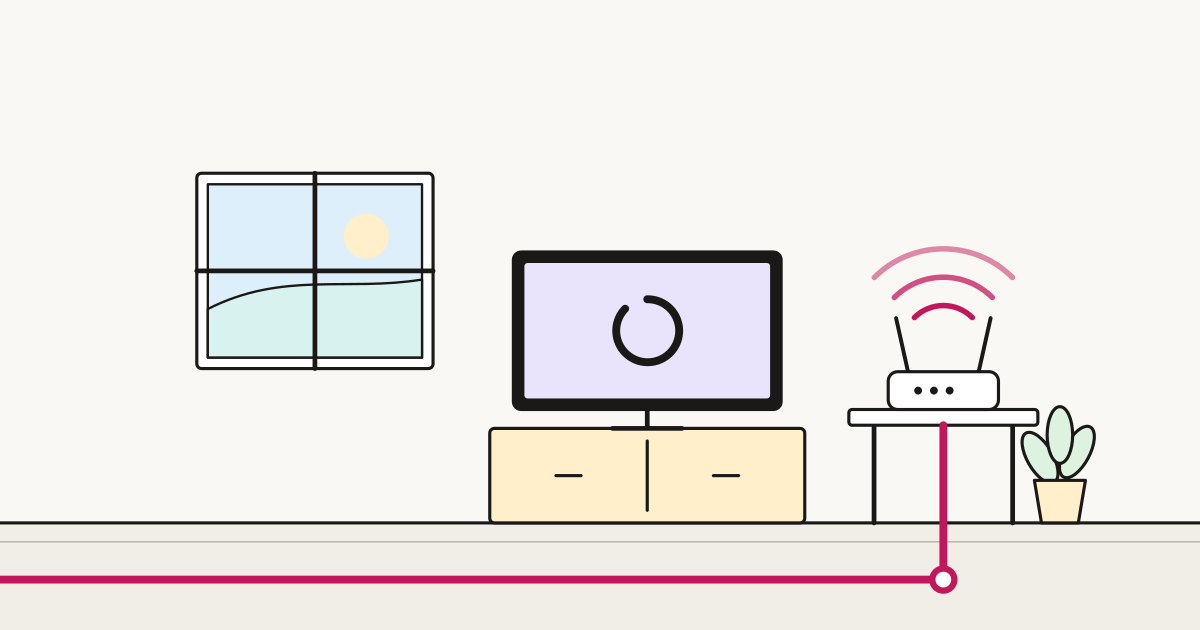
Your router is the single most security-relevant device in your house. It is on constantly, it is reachable from the internet, everything you own connects through it, and most people have never opened its settings page.
The good news is that the useful work here is about five minutes, done once. This is that list, in order of how much it matters.
1. Change the admin password
Not your Wi-Fi password — the separate one that logs into the router’s settings.
Many routers ship with a default like admin/admin or a password printed on the label. Some providers now ship unique credentials, which is much better, but plenty of older units do not.
Why it matters: anyone who reaches the settings page can change your DNS to route your traffic through their server, open ports into your network, or lock you out of your own equipment. On some devices this page is reachable from the wider internet if remote management is on.
Do it: find the router’s address (commonly 192.168.1.1 or 192.168.0.1, usually printed on the label), log in, change the admin password, store it in a password manager.
2. Turn off remote management
Routers often include a feature letting you access settings from outside your home. Almost nobody uses it deliberately, and it turns the settings page into an internet-facing login.
Unless you know you need it, switch it off. Look for “remote management”, “remote access” or “WAN administration”.
3. Use WPA3, or WPA2 at minimum
Your Wi-Fi encryption standard. In the wireless settings you may see WPA3, WPA2, WPA, or WEP.
WPA3 is current and best. WPA2 is fine. WPA and especially WEP are broken and should not be used — WEP can be cracked in minutes.
Many routers offer a “WPA2/WPA3 mixed” mode, which is the sensible default: modern devices get WPA3, older ones still connect.
While you are there, make the Wi-Fi password a decent length. Length beats complexity — three or four unrelated words is both stronger and easier to type onto a games console than P@ssw0rd!.
4. Set up a guest network
Most routers can broadcast a second network that has internet access but cannot see your other devices.
Two good uses:
Visitors. They get online without you sharing your main password, which then lives on their phone indefinitely.
Smart devices. This is the more important one. Cheap smart plugs, bulbs, cameras and doorbells are frequently the weakest security on any home network — built to a price, rarely updated, sometimes never patched. Putting them on the guest network means a compromised bulb cannot reach your laptop or NAS.
5. Update the firmware
Routers run software with security bugs like anything else. Many now update automatically; some do not.
Check for an “auto update” setting and turn it on. If your router is old enough that the manufacturer has stopped issuing updates, that is a reason to replace it — an unpatched internet-facing device is a genuine risk, not a theoretical one.
If your provider supplied the router, ask whether they push updates. Many do.
Things worth knowing but not worrying about
Hiding your network name (SSID). Provides essentially no security — hidden networks are trivially discoverable — and makes life harder for you. Skip it.
MAC address filtering. Sounds good, easily bypassed by anyone capable enough to matter, and a nuisance every time you add a device. Skip it.
Changing the Wi-Fi channel. A performance tweak, not a security one. Useful, but a different problem.
VPNs. Useful on public Wi-Fi, and for privacy from your ISP. They do not secure your home network, and a VPN will not protect you from a compromised router — the router sits between you and everything.
When your provider supplies the router
Provider routers are usually reasonable on security these days, often shipping with unique passwords and automatic updates. The trade-off is fewer settings — some hide the guest network or firmware controls entirely.
If yours is locked down, you have two options: accept it (fine for most people, given they handle updates), or use your own router. If you buy your own, you become responsible for updating it, so only do this if you will.
Either way, do not run two routers in series without understanding what that does to your network. It causes more problems than it solves.
If you think something is wrong
Signs worth investigating: devices you do not recognise on the network, your browser being redirected to pages you did not request, settings changing on their own, or the router’s DNS pointing somewhere you did not set.
The reset: hold the physical reset button to restore factory settings, then set it up again from scratch with a new admin password and a new Wi-Fi password. You will have to reconnect every device, which is tedious and occasionally necessary.
If someone had remote access to a computer on your network — see our guide on broadband scams — assume the router settings were reachable too, and reset it.
The five-minute version
- Change the router admin password
- Turn off remote management
- Set encryption to WPA3 or WPA2, with a long Wi-Fi password
- Put smart devices on a guest network
- Turn on automatic firmware updates
Done once, it protects everything behind it. There is very little else in home technology with that ratio.
Sources
- ncsc.gov.uk — National Cyber Security Centre — device and network security guidance
- ncsc.gov.uk — NCSC — passwords and staying secure online
- gov.uk — UK Government — Product Security and Telecommunications Infrastructure regime for connected devices
- ofcom.org.uk — Ofcom — router provision and consumer guidance